

Need to cancel your Ryter Pro subscription? You can manage and cancel your active plan directly from your account page. This guide explains where to go, what to click, and what happens to your access after cancellation.
Quick Answer
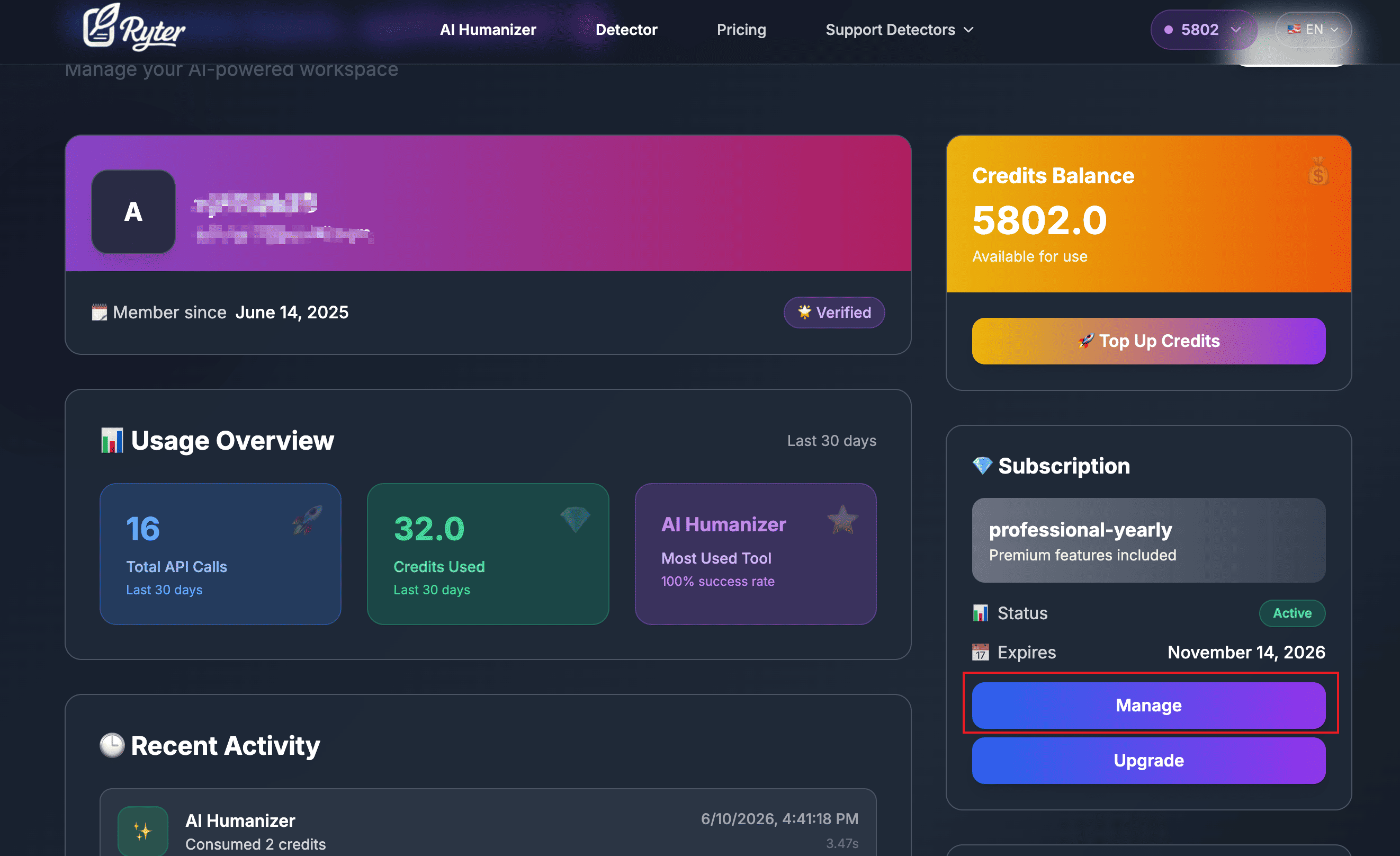
To cancel your Ryter Pro subscription, sign in to your account and open https://www.ryter.pro/account. From there, use the subscription management option to review your current plan and cancel future renewals.
How to Cancel a Ryter Pro Subscription
1. Sign in to Ryter Pro
Go to Ryter Pro and sign in with the same account you used when purchasing your subscription. If you use Google login, choose the same Google account connected to your Ryter Pro plan.
2. Open the Account Page
After signing in, visit your Ryter Pro account page. This is where subscription details, account information, and membership management options are displayed.
3. Find Your Subscription Management Section
Look for the subscription, billing, or membership management area. If your account has an active paid plan, you should see plan-related information and an option to manage the subscription.
4. Cancel Future Renewal
Choose the cancellation option and follow the confirmation steps. Once confirmed, your subscription will be set to stop renewing at the end of the current billing period. Keep an eye out for any final confirmation message so you know the change has been saved.
What Happens After You Cancel?
Canceling a Ryter Pro subscription normally stops the next renewal. In most cases, you can continue using paid features until the end of the billing period you have already paid for. After the subscription period ends, your account will move back to the free or non-subscribed experience unless you subscribe again.
Cancellation does not necessarily delete your Ryter Pro account. It only manages the paid subscription. If you want account-related help beyond cancellation, contact support through the options available on the site.
Before You Cancel: Things to Check
- Confirm the right account: Make sure you are logged in with the email address that purchased the plan.
- Check renewal timing: If your renewal date is close, cancel as early as possible to avoid confusion.
- Review your remaining credits: If your plan includes monthly credits, use or review them before your billing period ends.
- Save important outputs: If you used Ryter Pro to humanize AI text or rewrite documents, keep a copy of anything you need later.
Common Reasons Cancellation Is Not Showing
You Are Logged Into a Different Account
If you do not see an active subscription, you may be signed in with a different email address. Try the email or Google account you used at checkout.
The Subscription Was Already Canceled
If renewal has already been canceled, the account page may show your plan as inactive, expired, or valid only until the end of the current billing period.
The Payment Provider Needs a Moment to Sync
After a recent purchase or change, billing status can sometimes take a short time to update. Refresh the page and check again after a few minutes.
Can You Resubscribe Later?
Yes. If you cancel and later decide you need Ryter Pro again, you can return to the pricing page and choose a plan that fits your usage. Your account can continue to be used normally unless you separately request account deletion.
FAQ
Where do I cancel my Ryter Pro subscription?
You can cancel by signing in and visiting https://www.ryter.pro/account. Use the subscription management option shown on that page.
Will I lose access immediately after canceling?
Usually, canceling stops future renewal while keeping paid access active until the end of the current billing period. Your exact access timing may depend on your plan and billing status.
Does canceling delete my Ryter Pro account?
No. Canceling a subscription manages billing renewal. It does not automatically delete your Ryter Pro account or remove your login.
What if I cannot find the cancel option?
First, confirm you are using the same email address used for purchase. If the subscription still does not appear, check again after refreshing or contact support for help.
Can I still use Ryter Pro to humanize AI text after cancellation?
You may be able to continue using paid features until your current billing period ends. After that, your available access depends on the free plan and any remaining account limits.
Summary
Canceling Ryter Pro is handled through the account page. Sign in, open your account settings, find the subscription management section, and confirm cancellation to stop future renewals. This keeps the process transparent and gives you control over your membership whenever your needs change.